
1. Clouds rarely have a silver lining
Many people don’t understand the depth to which the data on their Windows PC’s are tied exclusively into Windows cloud Systems. These cloud systems usually come with a free capacity, but this is quickly used up and the free system is quickly overtaken by the need for paid services.
This is all very well at the time, but when money gets tight, and you need to reduce your subscription payments, Microsoft cloud services can become a real liability to your data.
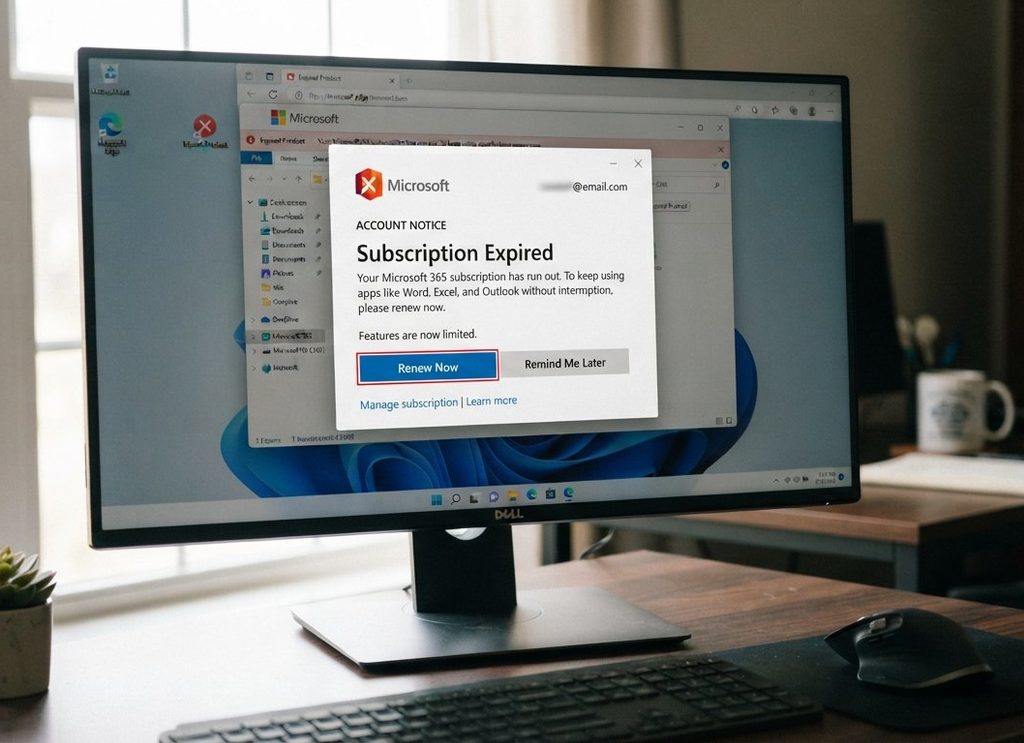
Cloud Subscriptions hold you to ransom
1.1 Microsoft OneDrive
OneDrive is baked directly into the Windows 10 and 11 File Explorer. By default, Windows aggressively prompts users to enable “Known Folder Move,” which automatically redirects and syncs the local Desktop, Documents, and Pictures folders directly to the cloud.
If a user stops paying for a Microsoft 365 Subscription, their storage limit drops drastically back to the free 5 GB tier. If the account remains over-quota or unpaid, Microsoft places the account into a “Frozen” state. If the user fails to renew or download their data within the designated grace period, Microsoft reserves the right to permanently delete all files and synchronized desktop data stored on the service.
1.2 Windows Backup & Cloud Sync
Windows 10 and 11 feature built-in cloud sync settings (accessible via Windows Backup) that save system preferences, accessibility configurations, Wi-Fi profiles, app data, and personalization options to the user’s Microsoft account.
Once subscription payments cease, this configuration data is deleted along with the tenant directory, preventing users from recovering or migrating their customized Windows desktop environments to replacement hardware.
1.3 Microsoft Outlook / Exchange Online
The default “New Outlook for Windows” application built into Windows 11 relies entirely on Exchange Online cloud infrastructure.
When an email subscription lapses, the mailbox enters a data retention period (typically 30 days for business and slightly longer for consumer accounts). After this window closes, all emails, calendar schedules, corporate contacts, and attachments are wiped completely from Microsoft’s servers and cannot be recovered by local desktop clients
1.4 BitLocker Cloud Recovery Key Storage.
When a consumer sets up a modern Windows 10 or 11 Home/Pro device with a Microsoft account, device encryption is often enabled automatically, and the BitLocker recovery key is silently uploaded to the user’s Microsoft OneDrive/Cloud Account.
If a user loses access to their account entirely due to a billing dispute, closure, or long-term account freezing, they lose access to the cloud-hosted recovery key. If the local machine undergoes a hardware change, firmware update, or system crash that triggers a BitLocker lock screen, the local storage drive becomes permanently unreadable and impossible to decrypt.
1.5 Summary of Subscription Deletion Timelines
Microsoft explicitly states in its Services Agreement that users should regularly perform independent backups. When payments fail, data typically transitions through these three phases:
| Phase | Duration | Data Status |
|---|---|---|
| 1. Grace Period / Expired | 1 to 30 Days | Fully accessible; billing alerts appear. |
| 2. Disabled / Locked | 31 to 90 Days | Users/Admins lose normal access; data can only be recovered by paying. |
| 3. Deleted | Post 90+ Days | Permanent deletion from cloud servers; data is unrecoverable. |
2 What to do to free yourself.
2.1 Disabling Automatic Cloud Syncing Features
Follow these steps to sever the ties between your local Windows 10/11 operating system and Microsoft’s cloud infrastructure, ensuring your data remains strictly local.
2.1.1 Decouple OneDrive and Turn Off “Known Folder Move”
By default, Windows redirects your primary user folders to the cloud. You must disable this before unlinking the application to avoid losing local visibility of your files.
- Stop Folder Backup: Click the OneDrive cloud icon in your system tray (bottom right corner) ➡️ Click the Gear Icon (Settings) ➡️ Go to the Sync and backup tab ➡️ Click Manage backup. Toggle Off the switches for Desktop, Documents, and Pictures.
- Unlink Your Account: In the same OneDrive Settings menu, navigate to the Account tab ➡️ Click Unlink this PC ➡️ Confirm by clicking Unlink account.
- Uninstall OneDrive: Open Settings (Windows + I) ➡️ Apps ➡️ Installed apps ➡️ Search for “Microsoft OneDrive” ➡️ Click the three dots and choose Uninstall.
2.1.2 Switch from a Microsoft Account to a Local Account
This prevents Windows from binding your operating system identity, preferences, and login credentials to an online Microsoft subscription.
- Convert Account: Open Settings (Windows + I) ➡️ Go to Accounts ➡️ Click Your info.
- Sign in Locally: Under Account settings, look for Sign in with a local account instead (on some versions of Windows 11, this may be under Account settings ➡️ Microsoft account).
- Follow the prompts to create a local username and password. This completely disconnects your active Windows login session from the Microsoft cloud.
2.1.3 Disable Windows Cloud Backup & State Roaming
Stop Windows from uploading your system settings, Wi-Fi passwords, and application preferences to Microsoft servers.
- Turn Off Backup: Open Settings ➡️ Accounts ➡️ Windows backup.
- Toggle Off Switches: Turn Off the options for Remember my apps and Remember my preferences (which includes passwords, language settings, and other Windows settings).
2.1.4 Retrieve and Safely Store Your BitLocker Encryption Key
If Windows automatically encrypted your drive, your unlock key is stored in your Microsoft account. You must extract a hard copy immediately so you do not get locked out of your machine if your account disappears.
- Find Your Key: Open a web browser, log into microsoft.com or live.com, and find your active device’s BitLocker key.
- Save It Locally: Copy this 48-digit numerical key. Print it out or save it onto a physical USB thumb drive kept separate from your computer.
- (Alternative) Disable BitLocker Entirely: If you prefer not to manage a key and do not require drive encryption, search for Manage BitLocker in the Windows Start Menu, open it, and click Turn off BitLocker.
2.2 💾 Step-by-Step Data Backup & Migration Framework
If you are planning to transition away from Microsoft Cloud services, use this sequential order of operations to download, migrate, and secure your data before terminating your subscription payments.
2.2.1Phase 1: Verify and Download OneDrive Data
Do not rely on the files visible in File Explorer, as they may just be “cloud placeholders.”
- Step 1: Log into the web interface at live.com.
- Step 2: Cross-reference your online files with your local
C:\Users\[YourUsername]folders. - Step 3: For any data missing locally, select the folders on the web interface and click Download. This will compile them into a
.ziparchive. Extract these files to an external storage drive.
2.2.2 Phase 2: Export Outlook Emails, Calendars, and Contacts
Because the “New Outlook for Windows” app does not natively manage local .pst archives well, you need to export your data cleanly via the web or classic client.
- Step 1: Log into live.com.
- Step 2: Click the Gear Icon (Settings) in the top right ➡️ Go to General ➡️ Privacy and data.
- Step 3: Click Export mailbox. Microsoft will prepare a download package of your entire email history, calendar, and contacts. (Note: This process can take up to 48 hours to compile; do this well before your payment lapses).
2.2.3 Phase 3: Move to an Isolated Local Backup System
It is important that you maintain a quality local backup. Once your data is clear of the Microsoft cloud, establish a “3-2-1” local backup routine to ensure you never face data loss from subscription cancellations again.
- The 3-2-1 Rule: Keep 3 total copies of your data, across 2 different types of media (e.g., your internal computer drive and an external hard drive), with 1 copy kept in a different physical location (e.g., at an office, a friend’s house, or using an independent, non-ecosystem encrypted cloud provider like Proton Drive or Mega).
3 Going one step further: Dumping Microsoft completely.
If you have Windows 10 on an older machine, and you are thinking of Updating to Windows 11, this decision might require you to buy all new hardware.
Microsoft markets this as a security enhancement, stating that newer machines are more secure than the older ones.

The fact is that because Windows is the primary target for 95% of the world’s malware and ransomware, Microsoft uses Windows 11 to force a hardware-level safety net. They essentially decided that if they cannot fix every legacy software vulnerability in Windows, they will use modern hardware to trap and isolate those vulnerabilities before they can harm the user.
Ubuntu approaches security from an entirely different structural philosophy. It does not require artificial hardware blocks to protect you from everyday threats for several reasons:
3.1 Ubuntu has a Superior Privilege Model
Windows historically evolved from a single-user system (MS-DOS), meaning security restrictions had to be “bolted on” later in its life. Programs in Windows frequently ask for full administrative control to install or run.
Linux was built from day one as a multi-user system. In Ubuntu, the core operating system files are strictly locked away. No app, file, or piece of malware can make system-wide changes without you explicitly typing your administrator password.
3.2 Ubuntu has safe, Curated Software (No Random Downloads)
On Windows, users are conditioned to open a web browser, search for a program, download an executable file, and click install. This is a primary vector for malware infections.
Ubuntu uses a centralized, digitally signed, and heavily vetted software archive called the App Center. You download software directly from curated repositories, meaning you are virtually insulated from accidentally downloading a virus hidden as a legitimate program.
3.3 Ubuntu uses modern, Safe Coding Practices
Even though Windows 11 demands new hardware, its core is still built on legacy code. By contrast, modern Linux distributions are rapidly upgrading their architecture. For example, Ubuntu 26.04 introduces core system utilities written in Rust, a programming language that inherently prevents entire categories of memory corruption vulnerabilities and software exploits that plague traditional operating systems.
3.4 The “Target Share” Reality
Cybercriminals write malware for profit. Since Windows dominates the global desktop market, almost all malware is coded specifically to exploit Windows systems. A Windows virus simply cannot execute or run on an Ubuntu machine.
3.5 Microsoft is forcing hardware upgrades to build a wall around Windows’ historic vulnerabilities.
Ubuntu doesn’t need that wall because it was built from the ground up to be fundamentally organized, restricted, and secure by design. Switching to Ubuntu is the ultimate way to keep a perfectly good computer out of a landfill while staying completely safe online
Switching to Ubuntu does not mean losing your daily routines. For every Microsoft program you currently use, Ubuntu has a free, reliable alternative that does not force you into a cloud subscription.
| What you use now (Windows) | Your new Ubuntu alternative | What it does |
| Microsoft Office / 365 | LibreOffice | Word processing, spreadsheets, and presentations. It reads and saves standard Word and Excel files seamlessly. |
| Microsoft Access / Databases | MariaDB (with DBeaver or LibreOffice Base) | A powerful database tool. Using visual interfaces (GUIs) like DBeaver makes it look and feel like standard desktop database software. |
| Microsoft Outlook | Evolution | Your command centre for email, calendars, and contacts. It functions almost identically to traditional Outlook. |
| Windows Media Player / Movies & TV | VLC Media Player & Rhythmbox | VLC plays literally any video or music file instantly. Rhythmbox beautifully organizes your music library. |
| OneDrive / Windows Backup | Local External Hard Drive & Deja Dup | Keeps backups strictly in your own home on a physical USB drive. No cloud required. |
3.6 Preparing for the Move (The Backup Checklist)
Before making the switch, you must safely extract your data from Microsoft’s ecosystem. Do not skip these steps.
3.6.1 Rescue your Files from OneDrive
- Open your File Explorer (the yellow folder icon).
- Click on OneDrive on the left side.
- Copy every folder inside (Desktop, Documents, Pictures) and paste them directly onto a physical external USB hard drive.
- Ensure a green checkmark appears next to the files, meaning they are completely saved to your physical computer and not just sitting in the cloud.
3.6.2 Save your Outlook Contacts and Calendars
- Open your Outlook application.
- Go to File > Open & Export > Import/Export.
- Choose Export to a file, select Comma Separated Values (CSV), and save your contacts and calendar lists to your external USB drive.
3.6.3 Turn off BitLocker Encryption
- In your Windows search bar, type BitLocker and click Manage BitLocker.
- If it says “BitLocker on,” click Turn off BitLocker.
- Why? If Windows encryption is left on, Ubuntu will not be able to read your hard drive to copy your files during the installation process.
4 Installing Ubuntu 26.04
Installing Ubuntu is a straightforward process handled by a friendly setup wizard.
4.1 Get a USB Stick
You will need a blank 8GB or larger USB thumb drive.
4.2 Download Ubuntu
Download the official Ubuntu 26.04 LTS installer file from ubuntu.com.
4.3 Create the Installer
Use a free tool like Rufus or Balena Etcher to burn the downloaded Ubuntu file onto your USB stick.
4.4 Boot from USB
Plug the USB stick into your computer, restart it, and tap your computer’s boot menu key (usually F12, F2, or Del depending on your computer brand). Select the USB drive.
4.5 Follow the Steps
Select Install Ubuntu. The system will guide you through choosing your language, connecting to Wi-Fi, and setting up a secure password. Choose the option to Erase disk and install Ubuntu for a completely fresh, Microsoft-free start.
5 Settling Into Your New Digital Home
5.1 Setting up LibreOffice & Evolution Email
When you open Ubuntu, click the App Center (the shopping bag icon) to find and open your new apps.
For Email: Open Evolution. It will ask for your email address and password. It automatically configures itself to pull down your mail. Go to File > Import to pull in the CSV files containing the contacts and calendars you exported from Outlook.
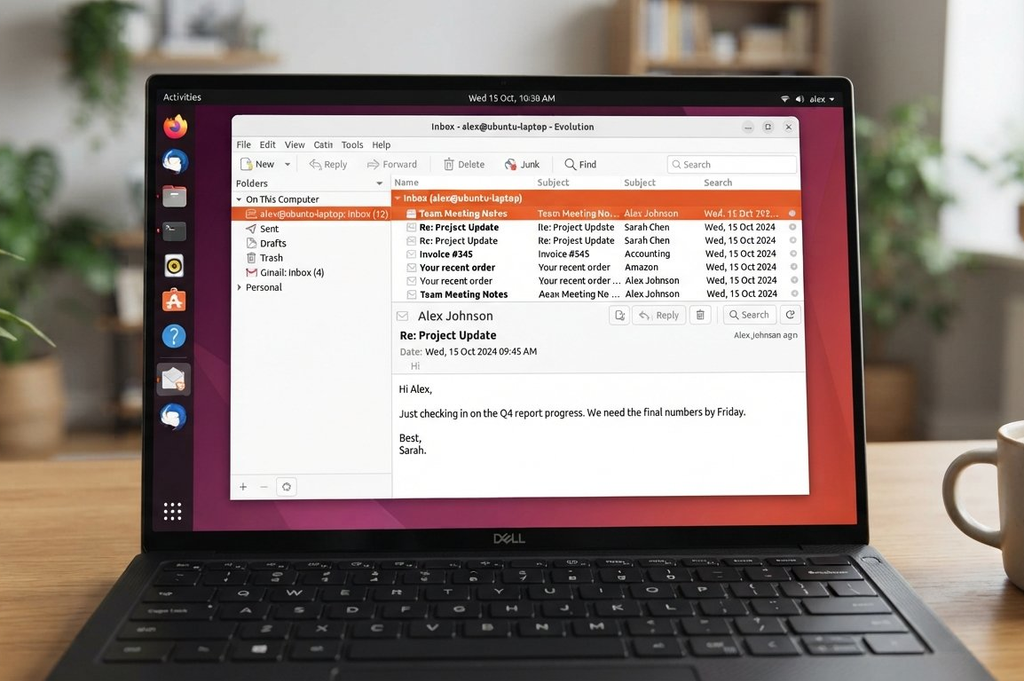
Evolution Mail client on Ubuntu – Outlook on Steroids!
For Documents: Open LibreOffice Writer (Word) or Calc (Excel). Plug in your external hard drive and drag your old documents onto your Ubuntu computer. They will open and edit perfectly.
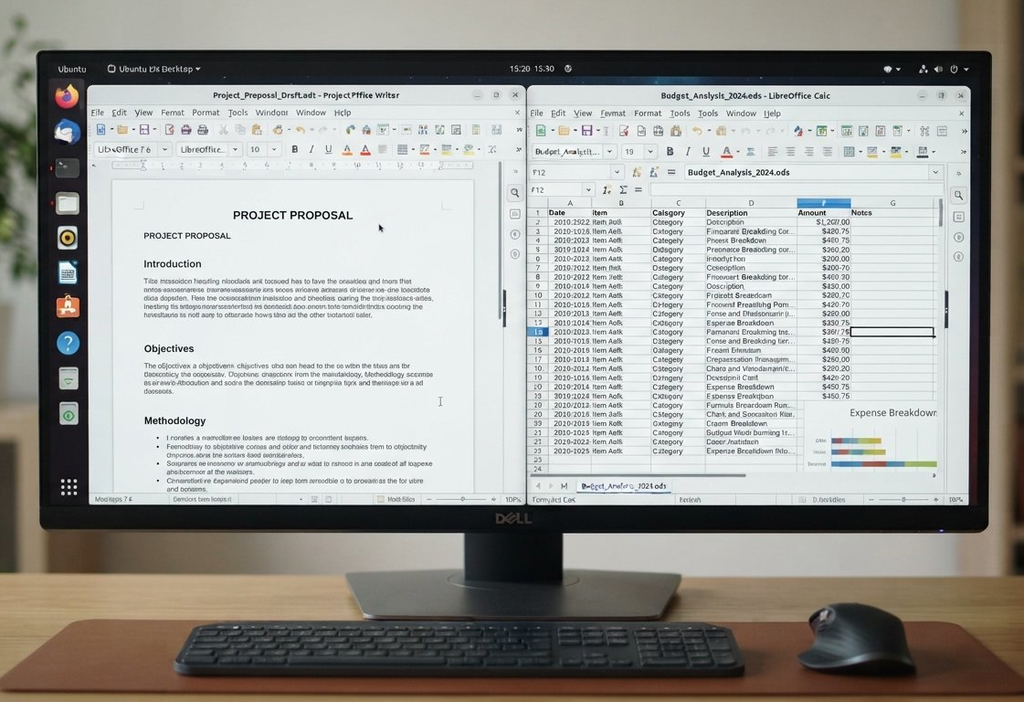
Libre Office – Writer and Calc – Replace Word and Excel for free!
5.1.1 Managing Databases Visually
If you managed databases on Windows, Ubuntu uses MariaDB. To avoid messy command lines, install DBeaver from the App Center. DBeaver gives you a clear visual window to view tables, run queries, and organize data just like standard Windows database programs.
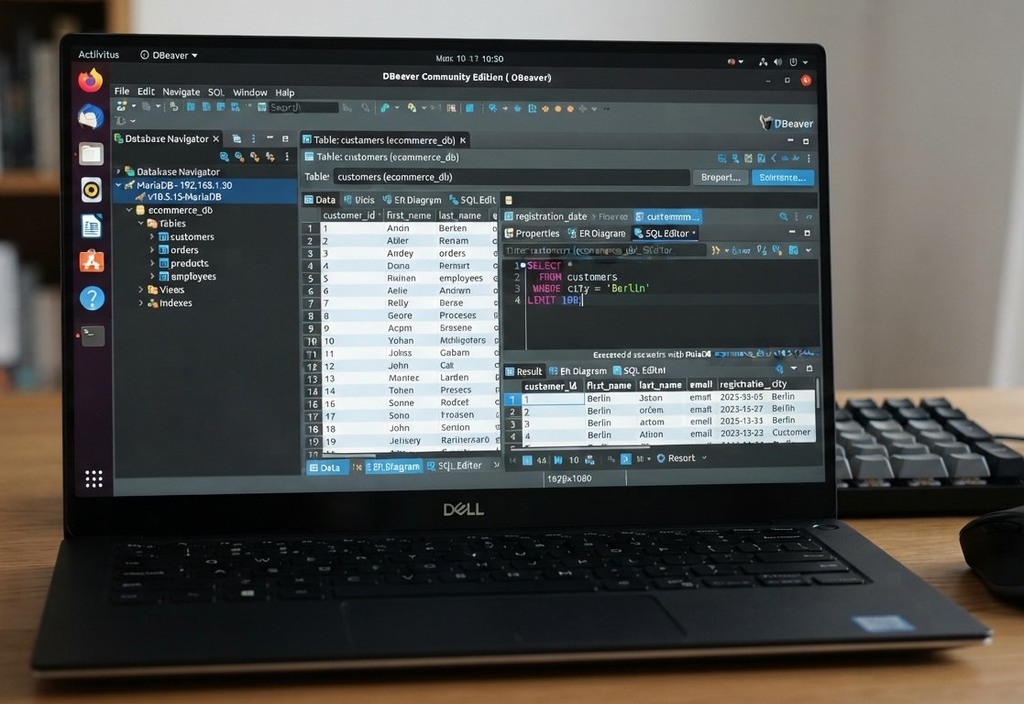
Manage your Databases with DBeaver
5.1.2 Music and Movies
Ubuntu comes with Gnome Videos built-in. This offers a seamless, out-of-the-box solution for browsing and watching videos. But you are not restricted to this one solution, you can download and open the simple Clapper or MPV applications, or more complex VLC Media Player or SMPlayer to watch your home videos or movies.
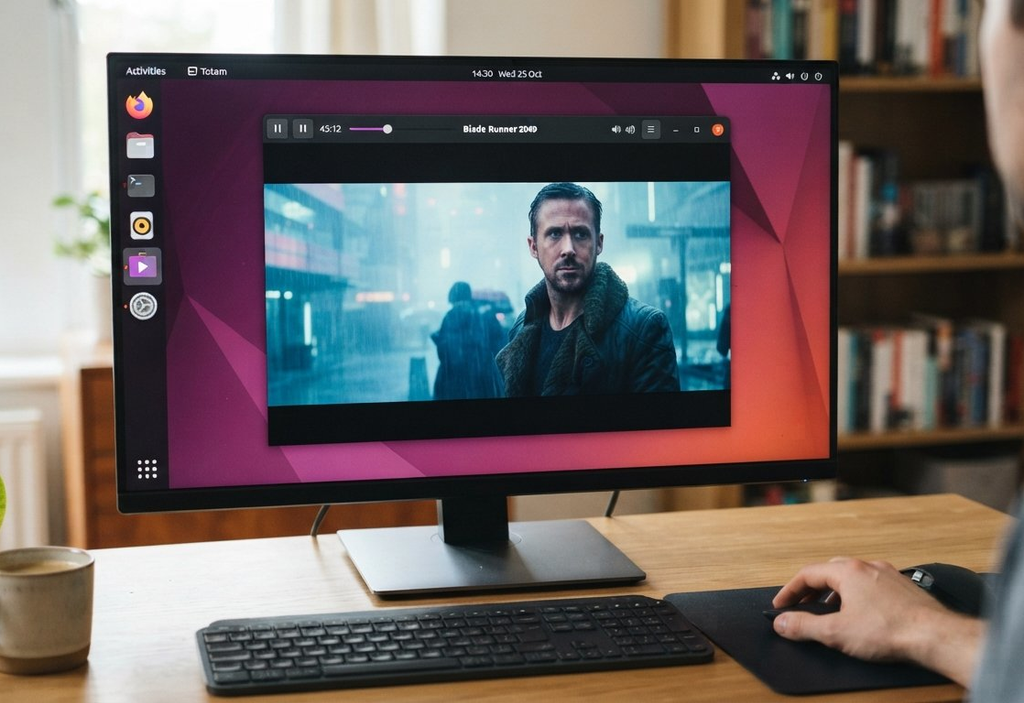
Watch your favorite movies right on the screen
For music lovers, Rhythmbox will automatically scan your music folder, sort your songs by artist or album, and let you listen without a single ad or subscription prompt.
You can even curate you own music using apps like Audacity.
6 Free & Secure
The best bits about moving from Windows to Ubuntu? These are all free, and because they are actively maintained, regularly updated to ensure they are more like to be kept free of security vulnerabilities faster than Microsoft products.
The reason? Ubuntu, and the software loaded on it is primarily open-source. Open-source is inherently more secure that the proprietary applications that run on Windows.
6.1 Why Ubuntu is considered inherently more secure than Windows.
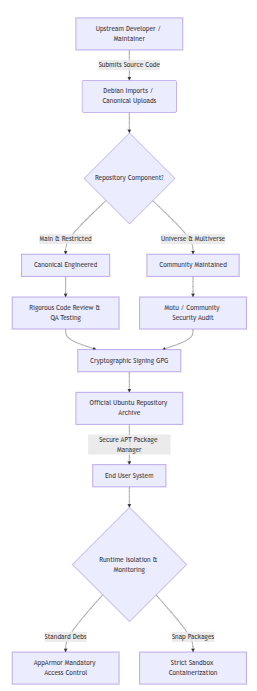
The core reason open-source software is inherently regarded as more secure . With proprietary software like Windows, the inner workings are locked in a vault, forcing users to rely on blind trust. With open-source software, the blueprint is open to the entire world, allowing for constant inspection and community-driven verification.
6.1.1To explain this clearly, it is best to use a real-world analogy.
Think of proprietary software as a high-tech electronic combination lock on a safe. The manufacturer tells you it is perfectly secure, but you cannot open the lock to see how it works inside. You have to trust that the company didn’t leave a master key or a secret back door that could allow someone else inside. If a criminal finds a flaw in that lock, you are entirely dependent on the manufacturer to notice it, design a fix, and ship it to you before you get robbed.
Open-source software is like a traditional, mechanical deadbolt lock made of clear, hardened glass. Anyone can look inside to see exactly how the pins move and mesh together. Because it is completely transparent, locksmiths and security experts from all over the world can inspect it daily. If there is a flaw in the design, someone notices it immediately, points it out, and fixes it right away.
6.2 The Four Pillars of Open-Source Security
6.2.1 “Many Eyes” Fix Flaws Faster
In the software world, this is known as Linus’s Law: “Given enough eyeballs, all bugs are shallow.”
- Windows: Only a closed group of Microsoft employees are allowed to look at the Windows source code. If they miss a security vulnerability, it can remain hidden for years—often discovered by cybercriminals first.
- Open Source: Thousands of independent global security researchers, universities, and software engineers constantly audit the code of systems like Ubuntu. Flaws are usually caught and patched by the community long before everyday users are even exposed to them.
6.2.2 No Hidden Agendas or Backdoors
Because anyone can read the code, open-source software cannot hide malicious behaviors.
- Windows: Microsoft builds telemetry, tracking, advertising ID systems, and cloud-sync “hooks” directly into the operating system. Users cannot easily see what data is being harvested or sent to the cloud.
- Open Source: If a developer tried to slip tracking software or a “backdoor” into Ubuntu, other programmers inspecting the code would see it immediately. The community would reject it instantly, keeping the software completely honest.
6.2.3 Rapid, Independent Security Patches
When a major security flaw is found, the response time is drastically different.
- Windows: You must wait for Microsoft’s corporate hierarchy to approve, test, and release an official update—typically on their strict schedule (like “Patch Tuesday”).
- Open Source: Because the code is public, any capable engineer in the world can write a fix the moment a flaw is discovered. This collaborative effort means critical security patches on Linux are often deployed globally within hours, rather than days or weeks.
6.3Safer Supply Chains (The App Store Model)
As mentioned earlier in your guide, how you get your software dictates your safety.
- Windows: Proprietary applications force users to download files from scattered corporate websites across the internet, exposing older adults to fake “Download” buttons and malware.
- Open Source: Open-source ecosystems use trusted, centralized digital archives. The software inside the Ubuntu App Center is compiled directly from verified, public source code, guaranteeing that the program you install hasn’t been tampered with or laced with a virus.
7 💡 An Important Note: Why is Ubuntu Free and Safe?
When we see software that is 100% free, our natural instinct is to be suspicious. We are conditioned to think, “If I’m not paying for it, there must be a catch, a hidden fee, or a virus inside.”
With Open-Source software like Ubuntu, LibreOffice, and Evolution, the rules are completely different. Here is why it is free, and why it is actually safer than software you pay for:
- It is a Collaborative Public Service: Open-source software is created much like Wikipedia. Thousands of software engineers, universities, and security experts worldwide donate their time to build a digital public common. They believe computing should be accessible, private, and independent of mega-corporations.
- How They Stay Afloat: Ubuntu is backed by a company called Canonical. They make their money by providing paid technical support to massive corporations, banks, and governments who run Ubuntu on their giant data servers. Because these big institutions demand absolute security, everyday home users get to enjoy the exact same enterprise-grade security for free.
- You Are the Owner, Not the Product: With free Microsoft accounts, you often “pay” with your privacy—Microsoft tracks your habits to sell targeted advertisements. Ubuntu does not track you, does not show you advertisements, and does not try to sell you monthly cloud upgrades.
The Bottom Line: Ubuntu isn’t free because it is cheap or low quality. It is free because it is designed to be public property—built by the global community, verified by security experts, and owned entirely by you.
8 Summary
I hope this helps you understand why changing from Microsoft to Ubuntu is not only a good idea, but it provides benefits way beyond those that are just based upon the strangle-hold Microsoft has over you and your data.
Is there a learning curve? Yes, but it’s not horrible. Both Windows and Ubuntu are windows system. Both allow the use of a Mouse or Voice control, both give you the ability to work on all of your existing documents, often with no alteration at all.
Only one offers you peace of mind, a faster operating system and less requirements for hardware upgrades.
That’s NOT Microsoft.